Home / Support
Let us take a look, from wherever you are.
When you're on the phone with one of our technicians and they need to see your screen, this is where you start. It takes about a minute, installs nothing, and stops the moment you close the window.
// start here
Open the support page your technician gave you.
Only open one of these if you called us, or we called you back about a ticket you raised. If you're not sure which one you're meant to use, ask the person on the phone and they'll tell you.
On a phone or tablet? Quick Support runs on Windows and Linux computers only. Call us on 604-259-1010 and we'll sort it another way.
// what happens
Three steps, and you can see every one of them.
Nothing here happens quietly in the background. You download it, you read out the code, and you say yes. Nothing is left behind afterwards.
-
01
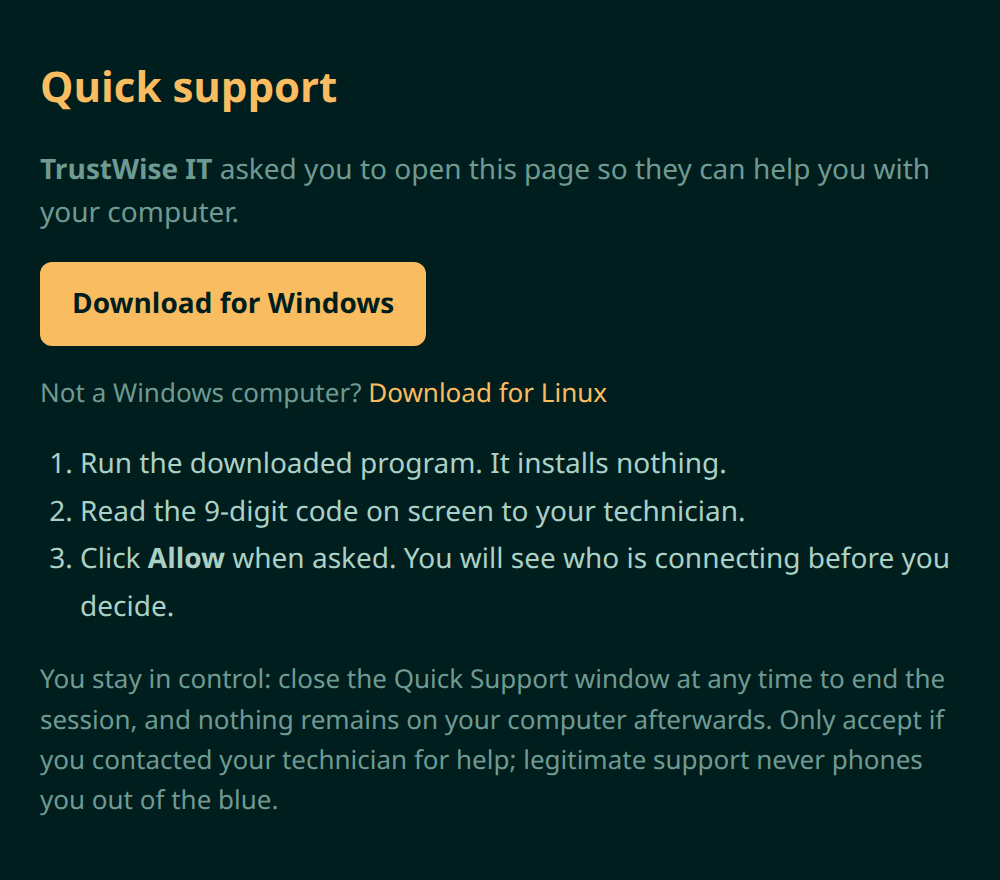
Download the Quick Support app
The link above opens a page with your technician's name on it and a single download button. Save the file and open it. Windows may ask you to confirm you meant to run it.
-
02
Read the nine-digit code to your technician
A small window opens with a code in big numbers. Read it down the phone. It's good for ten minutes, it works once, and until someone uses it nobody can see anything at all.
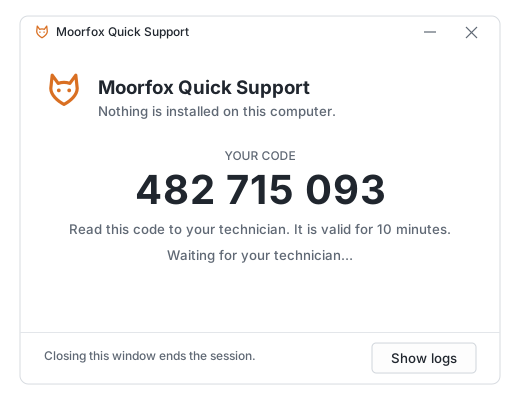
The window says Nothing is installed on this computer because nothing is: it runs from the file you downloaded and leaves when you close it. -
03
Approve the connection
Before your screen is shared with anyone, you're asked, by name. Check that the name matches the person you're talking to, then click Yes. Windows will ask once more for permission to show our technician its own security prompts.
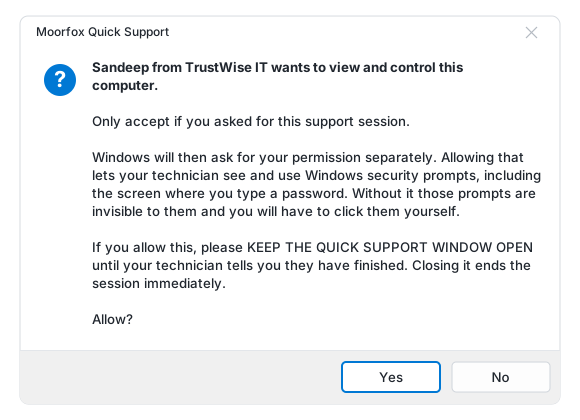
Keep the Quick Support window open while we work. Closing it ends the session on the spot. That's your stop button.
// staying safe
A real support session never starts with a phone call you didn't expect.
Remote support is a tool scammers imitate, so it's worth knowing where the line is. If someone rings you claiming to be from Microsoft, your bank, or "IT", and asks you to open this page, hang up and call us on 604-259-1010.
What you can count on
- We only ever connect after you contacted us.
- You see who is connecting, by name, before you approve.
- Nothing is installed, and nothing is left behind.
- Closing the window ends the session immediately.
- We'll never ask for your banking details or a payment to fix a problem.
// stuck before you start
Can't get the download to run?
That's usually a security setting doing its job. Stay on the line. Your technician can walk you past it, or take a different route entirely.